Tutorial on How to Use Keyword Chef to Find Keyword Gems
 Written by James Parsons • Updated April 15, 2026

Keywords are the backbone of content marketing. You want to find keywords that you can rank for, that your competition either isn't ranking for or hasn't found at all, and that relate to your niche and industry.
Since everyone needs keywords, developing keyword tools is a no-brainer, which is why there are hundreds of them on the market. Some are just glorified scrapers that pull autocomplete suggestions from Google. Others harvest Big Data to analyze search trends across industries. Most are somewhere in the middle.
Your competition is using some kind of keyword tool, guaranteed. If you end up using the same tools, there's a good chance you're going to find the same results, follow the same track, and play eternal second fiddle.
Finding unique keywords to target is hard, but it's possible if you use keyword tools others aren't. That's the promise Keyword Chef makes: to be a keyword tool for publishers, emphasizing quality keywords with useful search intent. It's not a PPC tool with a reskin, it's not just regurgitating Google Autocomplete suggestions, and it's not just whitelabeled data from Ahrefs or Moz. It, like LowFruits, is part of a set of fairly narrow utility tools I find very useful to recommend.
How does it work, and more importantly, how can you use it to find the absolute gems of keywords you need to rank, grow, and beat the competition?
Key Takeaways
- Keyword Chef focuses on publisher-friendly metrics, omitting irrelevant PPC data like CPC, making it simple and fast to learn.
- The SERPs score, indicating "easy to beat" competing pages, is the most useful metric for identifying rankable keyword opportunities.
- Using wildcard searches and category filters like "Best" or "How To" helps narrow results and reduces credit spending.
- Monthly subscribers get cheaper credits, queue priority, and access to Niche Insights; pay-as-you-go credits never expire.
- Keyword Chef works best as a lightweight entry-level tool, though advanced users may eventually outgrow its limited depth.
An Overview of Keyword Chef
First, let's talk about the top level: what is Keyword Chef, how does it work, what information does it give you, and how much will you be paying for all of this?
Keyword Chef is a keyword research tool; that much is obvious. You start with an input, generally a top-level keyword. It then:
- Takes that seed and identifies long-tail keywords using it.
- Gives you data about those long-tail keywords, including low/high/average search volume and the number of similar keyword phrases identified.
- Gives you a difficulty estimate by counting the number of "easy to beat" pages currently ranking in the top 10 for the query.
- Categories of keywords within the results, such as questions, how tos, comparisons, and alternatives.
- A domains page that shows which domains are ranking for the query, with metrics like age, number of keywords, search volume, and average position for those domains.
All of this can be filtered, combed through, and marked up right in the results. Or, you can export the data to CSV and import it into your spreadsheet manager of choice.
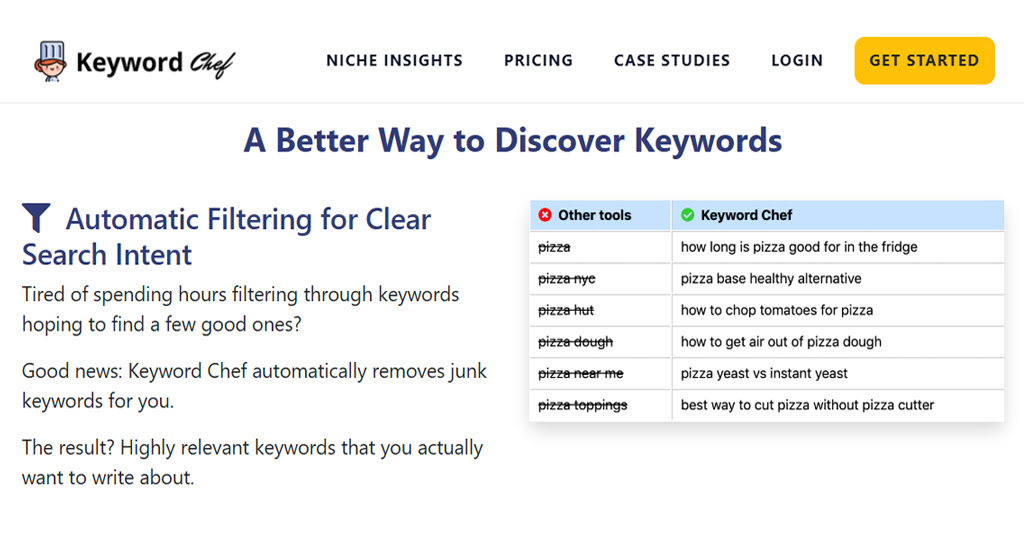
Unlike a lot of other keyword tools on the market, Keyword Chef doesn't overload you with irrelevant metrics. Do you care what the CPC is for the keyword when you're not looking to run ads? No, so why use a tool that includes it?
That's one of the biggest benefits of Keyword Chef. It's a simple, pared-down, easy to learn tool. You can go from trying it for the first time to basically expert use in a matter of minutes.
Tip: Search volume isn't as useful as you might think, especially for narrow and long-tail keywords. A result that reports 0 traffic doesn't actually have zero traffic; it's just a narrow variation of something people will still find with slightly different keywords. Don't let the low numbers discourage you. Even then, zero-volume keywords aren't useless either.
Pricing uses a credits system, where one credit is one row of results in the search you perform, which includes the long-tail keyword, the search volume, the SERP scores and previews, and all the rest.
You can buy access with pay-as-you-go credit bundles, or you can subscribe with a monthly subscription.
Pay as you go offers 1,200 credits for $20, 10,000 credits for $100, or 50,000 credits for $250. The credits don't expire, but they do cost more than the credits for the monthly plan. PAYG also doesn't give you access to Niche Insights, and if you're working on a busy day, you don't get queue priority for the tool doing its work behind the scenes, so searches might take a bit of time to perform.
Monthly gives you cheaper credits (5,000 for $30, 20,000 for $70, or 50,000 for $120), with the caveat that they're use-or-lose credits that refresh every month and don't roll over. Monthly also gets priority in the queue and access to Niche Insights.
Regardless of which kind of plan you use, your searches are saved under My Reports, and you can always reference them, even if you cancel your subscription.
What is Niche Insights?
Niche Insights is a secondary tool offered by Keyword Chef. It comes bundled with the monthly subscriptions and can't be used without one.
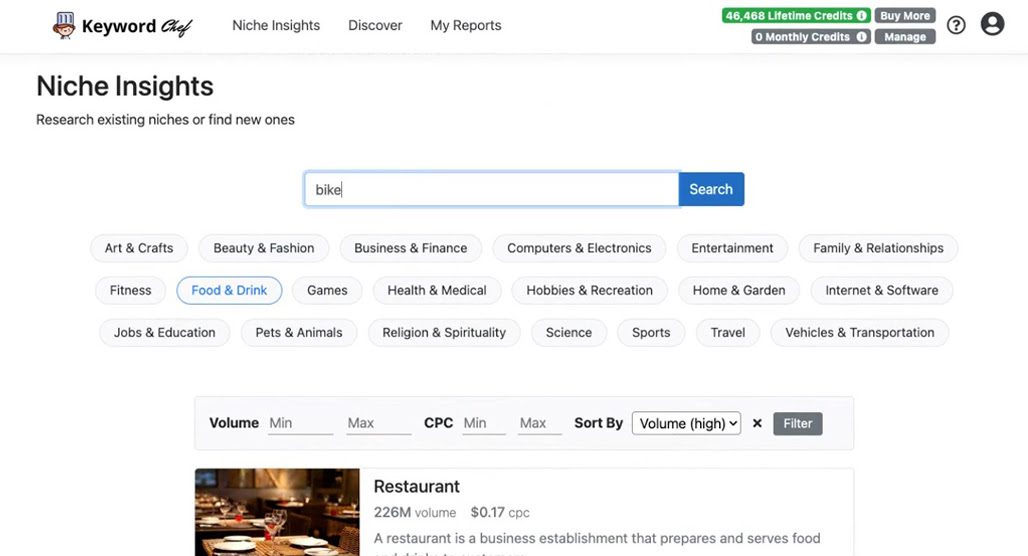
With this tool, you plug in a topic or niche, and pull a full report on that niche, including:
- Search volume across the niche.
- Average CPC for the niche.
- Trend history for the niche.
- Keywords similar to the Keyword Chef results for the niche.
- Outline-style topic drill-downs for the niche.
- Products recommended for the niche.
- Brands common in the niche.
- Top performing domains in the niche.
You can use this to explore secondary or sub-niches for your site, or drill into a top-level niche and see what sub-topics might be worth covering. There's a lot there, though none of it is necessarily unique enough to pay for on its own, in my opinion. If you're getting it through the monthly subscription anyway, though, it's a good value-add.
Critically, Niche Insights doesn't require credits to run, which is why it's only available to monthly subscribers.
Where does Keyword Chef's Data Come From?
Keyword Chef isn't wholly forthcoming with the secret sauce behind their data, but you may notice that it's not entirely unique. Basically, it's a mixture of data from Google (via autocomplete, yes, but also the keyword planner), some third-party data, and a proprietary analysis of the SERPs itself.
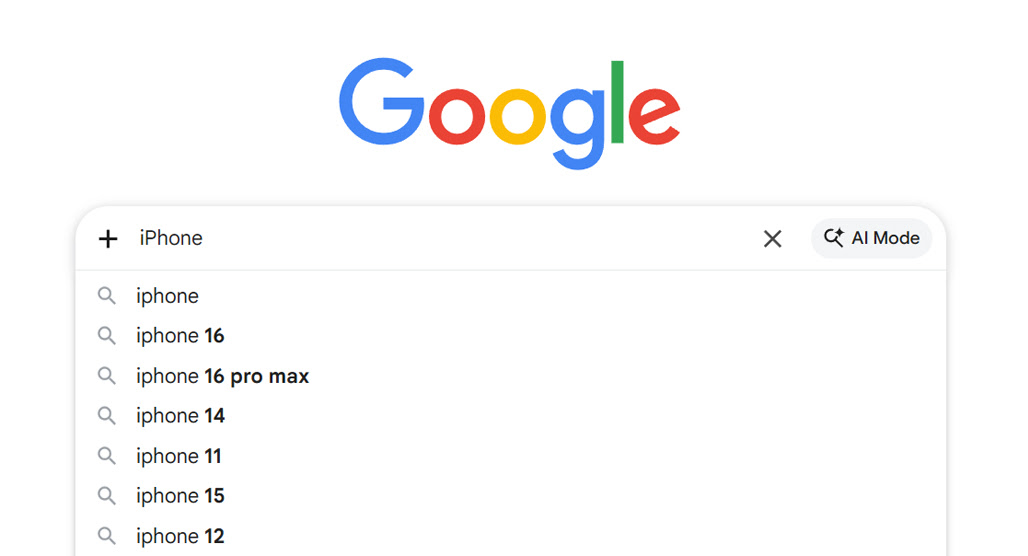
While you could technically do pretty much all of this yourself, it's handy to have a tool doing it for you.
How to Use Keyword Chef to Find Keyword Gems
So, how do you actually use Keyword Chef effectively? It's actually really easy.
Step 1: Sign Up
It's up to you if you want to start with the free trial, jump right into a pay-as-you-go batch of credits, or sign up for the monthly plan. There are a couple of details worth knowing before you decide, though.
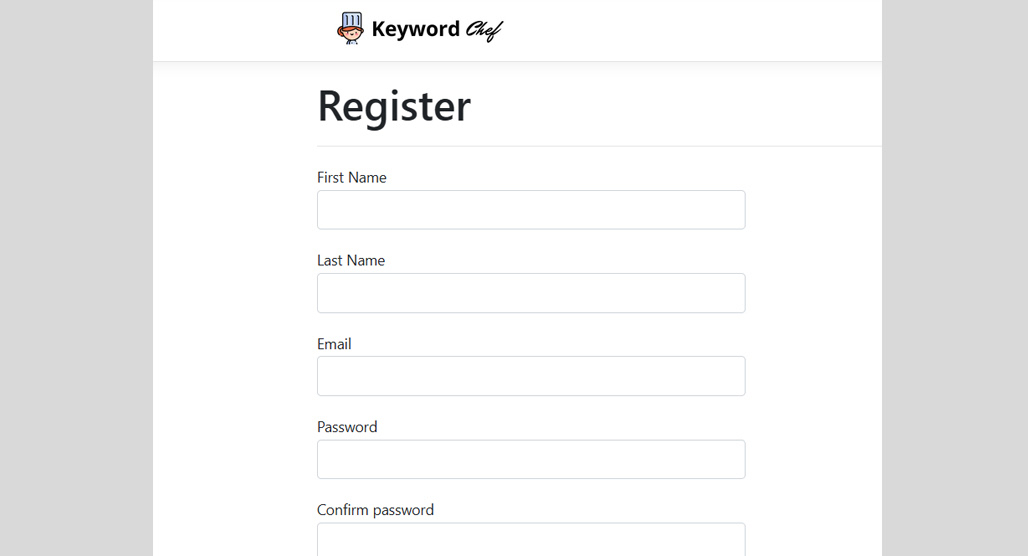
First, the free trial comes with 1,000 credits, with a maximum of 30 SERP lookups, and the "Get all SERPs" feature is locked. The credits are lifetime credits, and you get to keep any you haven't used if you buy more or subscribe later.
Secondly, if you have lifetime credits either from the free trial or from a PAYG pack, and you later subscribe to the monthly plan, you keep both kinds of credits. Monthly credits are used first since they expire, and you only tap into the lifetime credits when you're out of monthly credits.
Searches can return anywhere from a few dozen results up to thousands. When each row of results is a credit, it can be easy to burn through them if you aren't careful. I'll give you some tips on cutting down on the credits cost later.
Step 2: Think About Searches to Run
You'll want to do a little groundwork for what kinds of searches you want to run. You can do some brainstorming, use data from previous keyword research efforts, or just play around and see what comes up with a few hundred credits.
The main Discover section of the tool has a drop-down to narrow your search. This is great if you have a specific kind of content or intent in mind and want to save on credits.
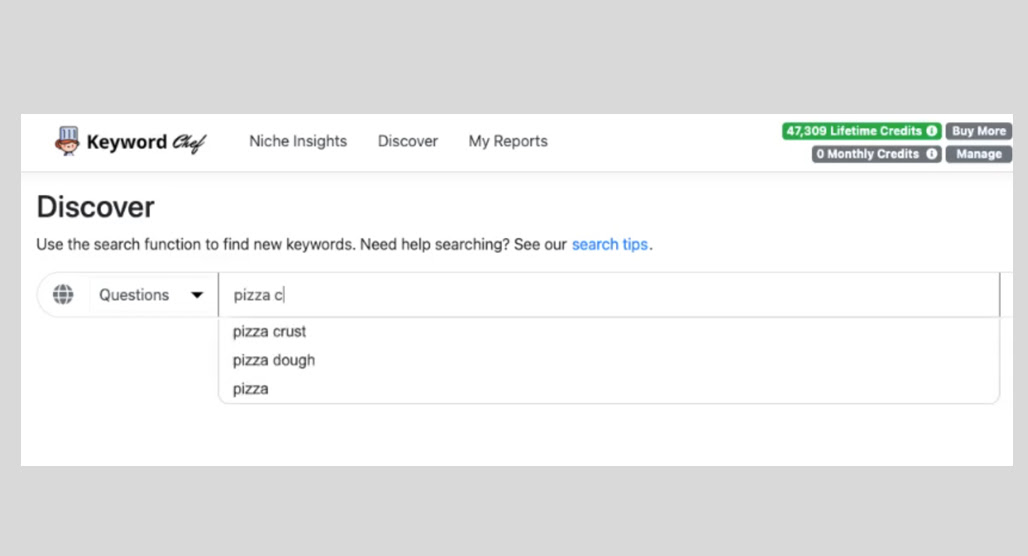
Your options are:
- Wildcard
- Questions
- Best
- Compare
- How To
- Most
- Alternatives
- Ideas
Wildcard requires an asterisk in the query, so more on that in a moment.
I find that three types of keyword searches are effective.
Basic Keyword Searches
Basic keyword searches are just your average "kitchen utensils" queries. They work best with the non-wildcard searches, but you can also do broad wildcard searches, for example, "* kitchen utensils", which can bring up keywords like "silver kitchen utensils" and the like. Be aware that these are some of the most costly credits-wise, because they're very broad.
Narrow Filtered Searches
These use the other options in the drop-down to perform searches with a specific format or intent.
For example, Best is an equivalent to your keyword query being "Best * kitchen utensils"; it always starts with the word Best. They're essentially preformatted versions of narrower wildcard queries and can be quite handy.
Phrase Wildcard Searches
Phrase wildcards are some of the most interesting queries, because you can choose a format for a query without specifying a keyword. For example, you might use a wildcard like "Top * for bakers" and get all sorts of keyword recommendations.
Step 3: Run Your Search
Once you have some query ideas, plug in the information and run the search. You have one more step before you get results, though.
When you choose a category of search and put in a keyword, Keyword Chef will generate a preview window. This window will show you some sample keywords and give you a word cloud with words that come up in the results. You can click on some of those words to ignore them in the results, which removes them from the full search and reduces the credits you spend.
For example, if you ran a search for questions about burgers, you could filter out things like "bob's", "mcdonalds", or "mrbeast" to remove branded results that aren't useful to you. You can also add custom word filters if the prepopulated cloud doesn't have one you want to remove, and you can use negative flags in the search ("-mcdonalds") to remove them that way as well.
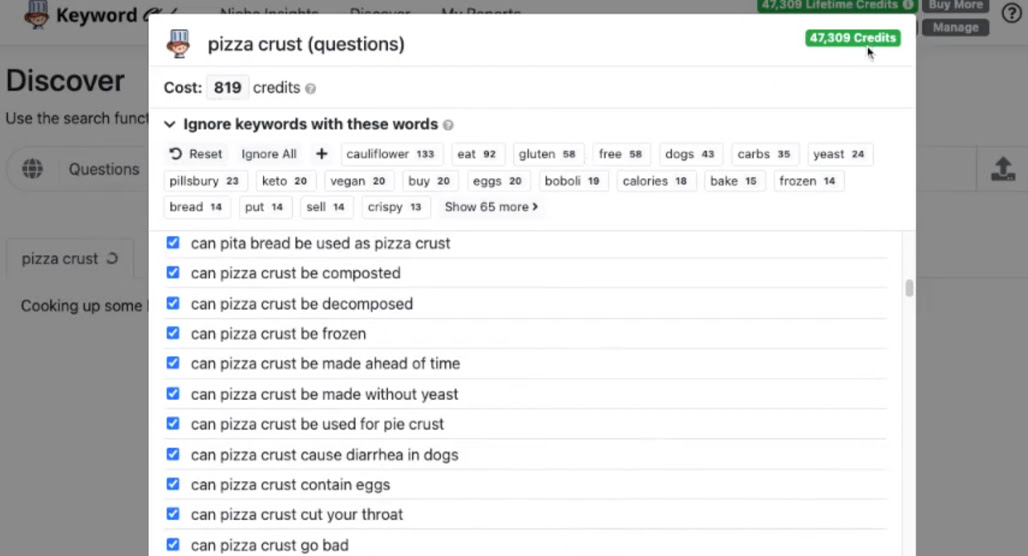
Tip: Keyword Chef is generous. If you have, say, 200 credits left, but you run a search that would generate 250 results, they don't cut you off. You just get those extra 50 results for free. I imagine if you repeatedly abuse this, they'd catch on, but it's nice if you're running close to the end of your free trial or a monthly batch.
There are also basic geographic filtering options if you want to use those too.
All of this helps you in two ways. First, it narrows down the intent and value of the keyword results you'll get to things that are more relevant to you. And second, it cuts out spending credits on known-worthless results.
Step 4: Analyze and Use Your Results
Once you have your data, now it's time to use it.
The metric I find most useful is the SERPs number, which is an indicator of how many "easy to beat" sites are in the top ten for that search. So, a higher number is better. Find the keywords with the highest numbers and most relevance to your site, and consider prioritizing those.
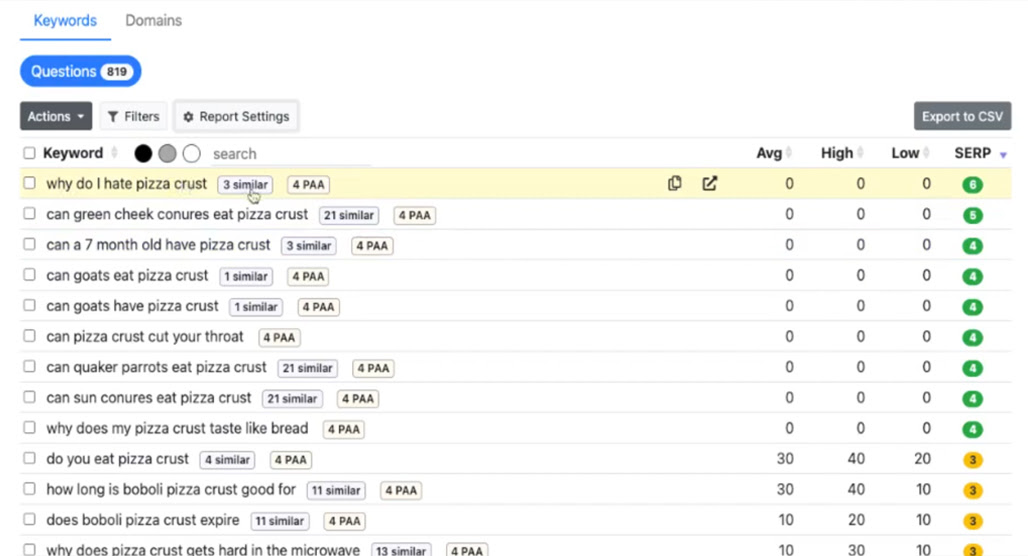
You might find some interesting domains in that list, by the way. For example, Keyword Chef lists Reddit as a domain that's easy to outrank. While you might object, it's actually true; Google rarely actually lists Reddit as the #1 result for most queries, despite its SEO power.
Once you've identified the keywords you find most promising, there's just one thing left to do: create great content for them. Unfortunately, Keyword Chef doesn't have anything to help you there. They can get you to the starting line, but content production is the realm of a whole different set of tools and skills.
Is Keyword Chef Worth Using?
It depends heavily on your previous keyword research efforts and how much data you like to have.
I think it works very well as a lightweight tool for finding easy long-tail keywords to target. If you're used to having a lot more metrics and a lot deeper insight, you're going to find it feels pretty basic. The low price point and lack of clutter make it a great intro-level SEO tool, and it's one I find easy to recommend to anyone getting started with serious keyword research.
I do think it's a tool that you can eventually "grow out of" when you start getting into more institutional efforts for content marketing. But it's affordable, it's simple, it's easy to use, and it gets the job done.
What do you think? Have you tried out Keyword Chef? Let me know your opinions below.

Related Posts

Leave a Comment


Fine-tuned for competitive creators
Topicfinder is designed by a content marketing agency that writes hundreds of longform articles every month and competes at the highest level. It’s tailor-built for competitive content teams, marketers, and businesses.
Get Started